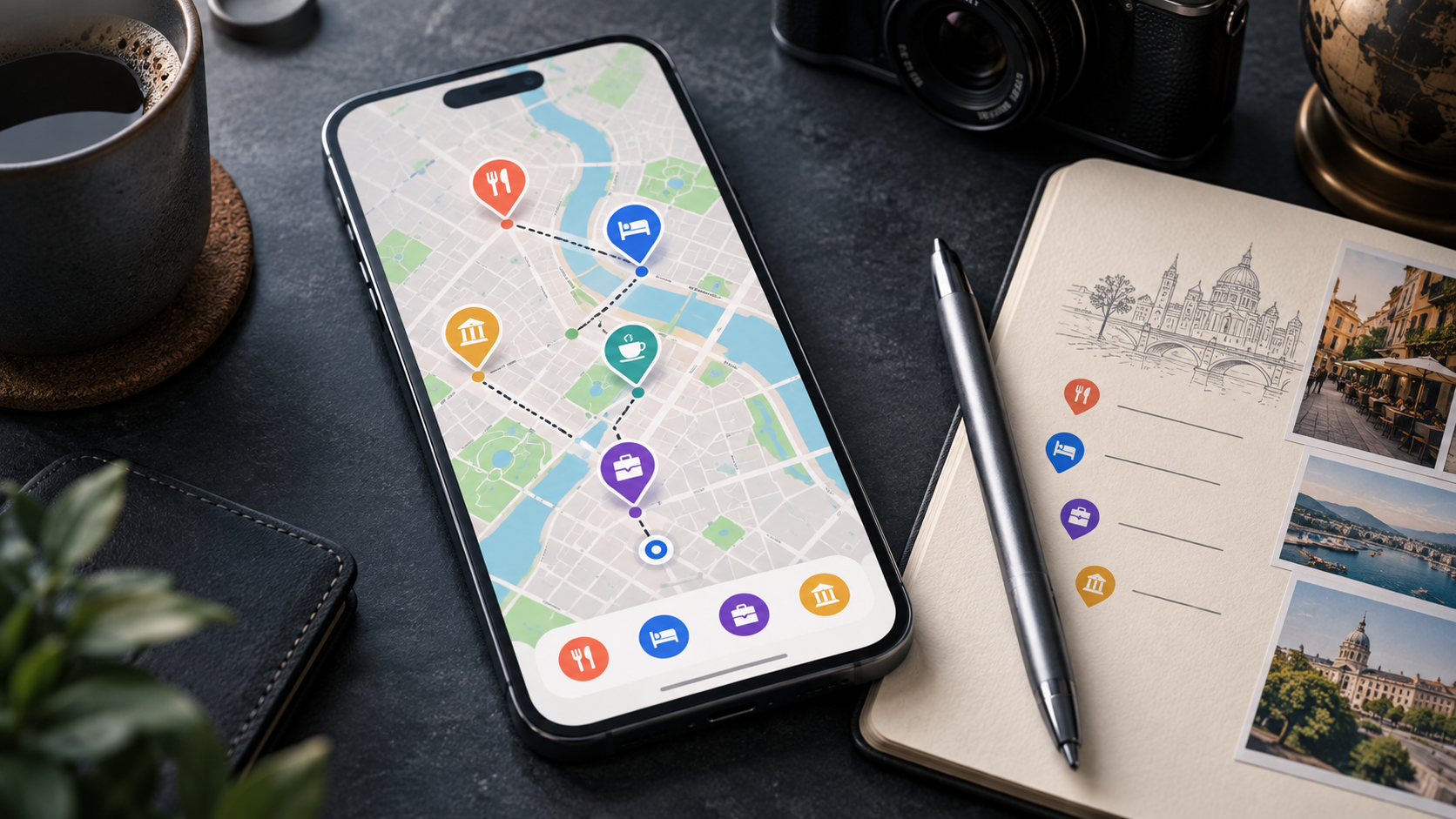
Google Maps Lists offer a simple way to organize restaurants, hotels, customer sites, attractions and other saved places directly on a map. Instead of keeping addresses across screenshots, messages and separate notes, users can group locations into named collections, add context and share the result with other people.
Recent coverage has presented Lists as a long-awaited new Google Maps feature. That description needs qualification: Google launched the ability to create and share place lists in February 2017. What has changed over time is the feature’s visibility and the range of organizational tools around it, including custom icons, notes, manual ordering and collaborative editing.
What Google Maps Lists can do
A list is a collection of places saved under one topic or purpose. A traveller might create separate lists for accommodation, restaurants and museums. A field team could group customer sites, suppliers and meeting venues by city. Each saved place remains connected to its Google Maps entry, so opening it provides directions, opening hours, reviews and other available information.
Custom lists can include a name, description and icon. Individual places can carry notes, which are useful for details such as a reservation time, an access instruction or the reason a location was recommended. Users can also hide or show a list’s pins on the main map to reduce visual clutter.
How to create a list on mobile
- Open Google Maps on Android or iOS.
- Open the You or Saved section, depending on the app version and region.
- Select New list.
- Add a name and description, then choose the visibility settings.
- Search for a place, open its information card and select Save.
- Choose the list that should contain the place.
The wording and placement of controls can vary as Google tests interface changes. If the Saved option is not visible immediately, it may be available inside the main menu or the You tab.
Using custom icons as a visual system
Google Maps allows users to select an emoji or icon for eligible custom lists. This turns the map into a visual index: a cup can mark cafés, a bed can identify hotels and a briefcase can represent business appointments.
Icons for Google’s default collections—such as Favorites, Want to go and Travel plans—may not be editable. A custom list is the better option when a project needs its own visual language.
Add notes that remain attached to each place
A saved address alone does not explain why it matters. Notes provide the missing context. A travel list can record that a museum closes early, while a work list can identify the correct building entrance or the name of a local contact.
Notes should not be treated as a secure document store. Avoid placing passwords, access codes, sensitive customer information or confidential schedules in a shared list. Use an approved company system for protected operational data.
Arrange places in a useful order
On supported mobile versions, users can enable a custom order while editing a list and drag locations into the preferred sequence. That can represent a daily itinerary, a priority ranking or the planned order of customer visits.
Manual ordering does not automatically optimize a route. Google Maps can provide directions between places, but a long list is not the same as a dedicated multi-stop routing or logistics platform. Teams that need vehicle constraints, dispatching, proof of delivery or large-scale route optimization still need specialist software.
Share a list or invite collaborators
Lists can remain private or be shared through a link. Google Maps also supports inviting other people to edit a list, allowing a group to add locations and notes during trip planning.
Before sending a link widely, check the sharing configuration. A view-only list reduces accidental changes. Collaborative access is more useful for a small working group, but participants may be able to see who added or edited places and associated profile information.
Google notes that its default Starred places collection cannot be shared. Users should create a separate custom list when collaboration or public distribution is required.
Lists work across mobile and desktop
Google Maps Lists are available through the mobile apps and maps.google.com. A list created on one signed-in device can be accessed from another, and places from saved lists can appear as pins on the map.
Google’s original 2017 announcement also said followed lists could be viewed with downloaded offline maps. However, offline availability of map details and navigation varies by region and downloaded area. Travellers should prepare the relevant offline map before departure rather than assuming every feature will work without connectivity.
Lists versus My Maps and Timeline
Google Maps Lists
Best for quickly saving ordinary places, attaching short notes, displaying pins and sharing recommendations with a small group.
Google My Maps
Better suited to custom map layers, drawn routes, imported data and more complex presentation. It requires more setup and is less convenient for spontaneous saving inside the standard Maps app.
Google Maps Timeline
Timeline records places and routes a user has visited when the relevant location-history settings are enabled. It serves a different purpose from Lists, which are deliberately created collections of places a user wants to remember or plan around.
Useful applications for business teams
- Sales travel: group prospects, meeting rooms and nearby accommodation by city.
- Field service: maintain a small reference list of sites and safe parking locations.
- Events: share venues, hotels, restaurants and transport connections with attendees.
- Procurement: organize suppliers and showrooms for an on-site sourcing visit.
- Relocation: compare offices, transport hubs and local services during a site search.
Lists are most effective for lightweight coordination. They are not a replacement for a CRM, asset-management system or workforce-dispatch platform because they lack the workflow controls, structured records and reporting those systems provide.
Privacy and account considerations
A list can reveal travel interests, routines or business relationships. Keep personal collections private by default, review link access before sharing and remove collaborators when a project ends. For company use, teams should also consider whether consumer Google accounts meet internal identity and records-retention policies.
Google allows users to export saved-list data through Google Takeout. That provides a useful exit path, although an exported file will not reproduce every interactive feature of the Maps interface.
Why the feature still feels new
Lists have existed for nearly a decade, but many users still treat Google Maps mainly as a search and navigation tool. Interface changes, inconsistent discovery and the habit of saving recommendations in messaging apps have kept the organizational features out of view.
The value is not a dramatic new technical breakthrough. It is the reduction of friction: the place, map position, route and planning note can live in the same interface. For individual trips and small collaborative projects, that is often enough to replace a patchwork of screenshots and copied links.
FAQ
Are Google Maps Lists a new feature?
No. Google introduced place lists and sharing in 2017. The feature has since gained additional customization and collaboration tools.
Can other people edit a Google Maps list?
Yes. The list owner can invite collaborators and allow them to add or edit places. Check the sharing settings before distributing the link.
Can I add notes to saved places?
Yes. Notes can be attached to places inside a list, but sensitive information should be stored in a more secure system.
Can I change the order of places?
Supported mobile versions provide a custom-order option that lets users drag saved places into a preferred sequence. It does not automatically optimize the route.
Can Google Maps Lists replace Google My Maps?
Lists are faster for everyday collections. My Maps is more appropriate when a project needs custom layers, drawn shapes, imported datasets or a richer map presentation.
Can I export my saved lists?
Yes. Google’s help documentation directs users to Google Takeout, where the Saved category can be included in a data export.